- Excel Explorer
- Posts
- Create Dynamic Progress Bars in Excel
Create Dynamic Progress Bars in Excel
In partnership with

Today, we will focus on creating a progress bar in Excel, a useful visual tool to track progress in your projects or tasks. Some of you may already be familiar with this feature or might be using it. If that's the case, feel free to skip today's edition.
For those looking to add a dynamic visual element to their spreadsheets, let's start learning how to create a progress bar in Excel. This skill will improve your ability to monitor progress and make your data presentations more engaging the next time you use Excel.
Smart, actionable news trusted by 1M+ subscribers

Looking for a quick way to stay on top of the latest market news?
Meet The Daily Upside, a free daily newsletter offering sharp analysis on finance, economics, and investing news. Created by Wall Street insiders and bankers, this insightful newsletter delivers valuable insights that go beyond the headlines.
And the best part? It’s completely free. Join 1M+ readers and subscribe today.
The process is as follows:
Open Excel and Navigate to the cell to create Progress Bar

Type the following formula, =REPT(“|”,D3)

Change the font to “Playbill”

“Double click” to auto fill

Enjoy!!!
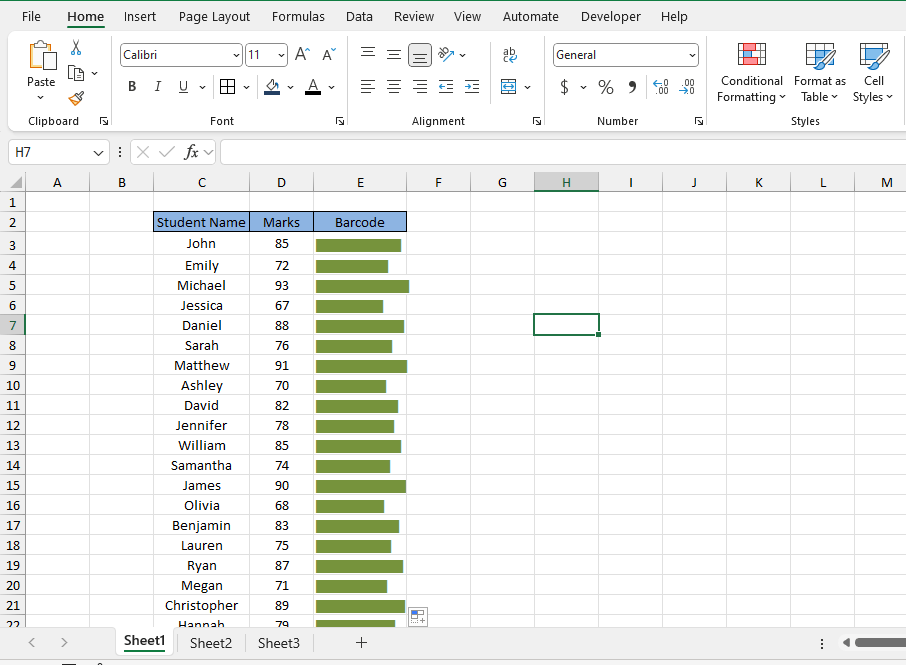
That’s how you can show progress bars in Excel is a simple way. Whether you’re managing a project, tracking sales, or monitoring personal goals, progress bars can help you visualize data for ease.
Stay tuned for more Excel tips and tricks in our future issues. Happy visualizing!